How to use KLT Profit
Five minutes, start to finish. Pick your side below — owners run the money, dispatchers run the loads.
Getting in
From nothing to a working team in five steps. The first four belong to the owner; the last one is the dispatcher's.
Pick your button
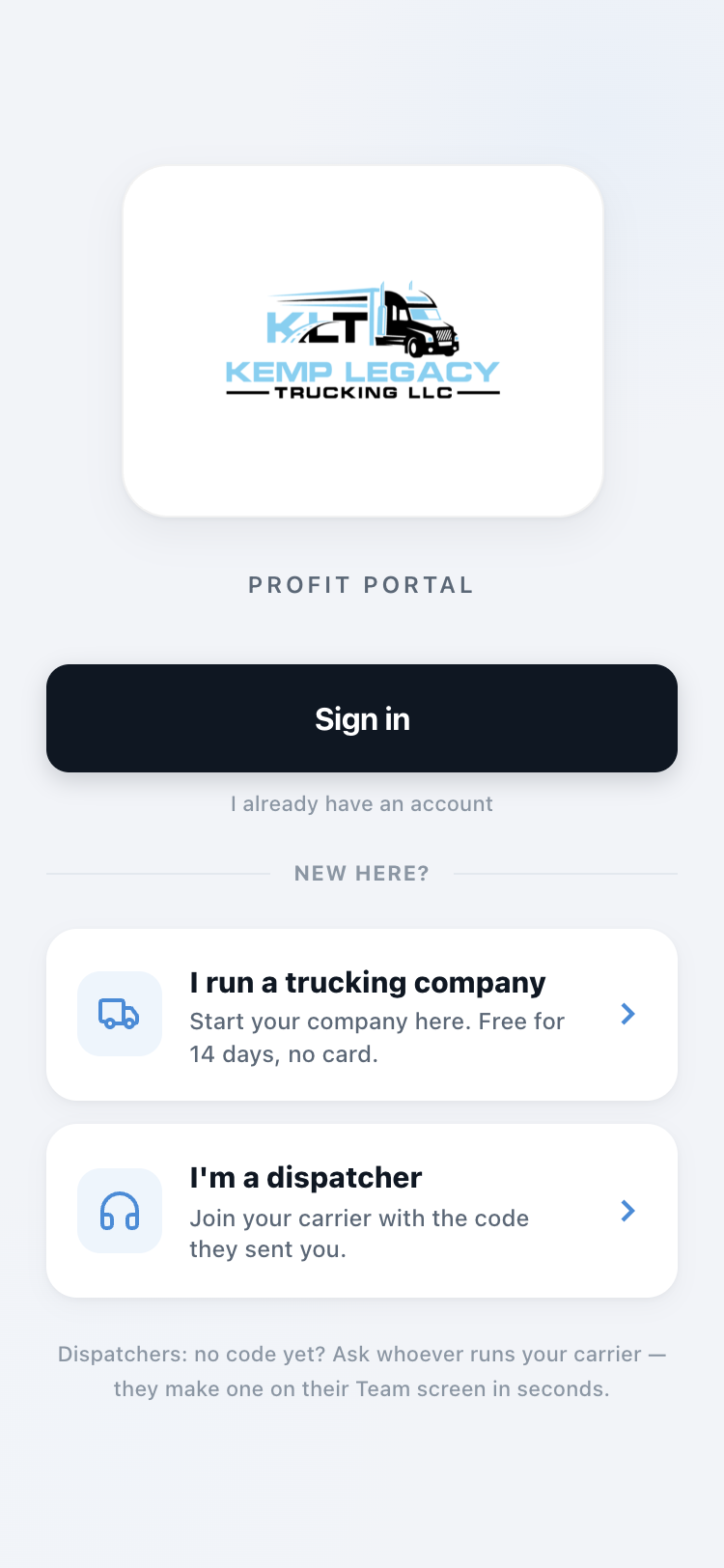
Open klt-profit.pages.dev on your phone.
Own or run the trucks? Tap "I run a trucking company." Dispatch for someone? Tap "I'm a dispatcher." Already set up? Just tap Sign in.
Owners: create your company
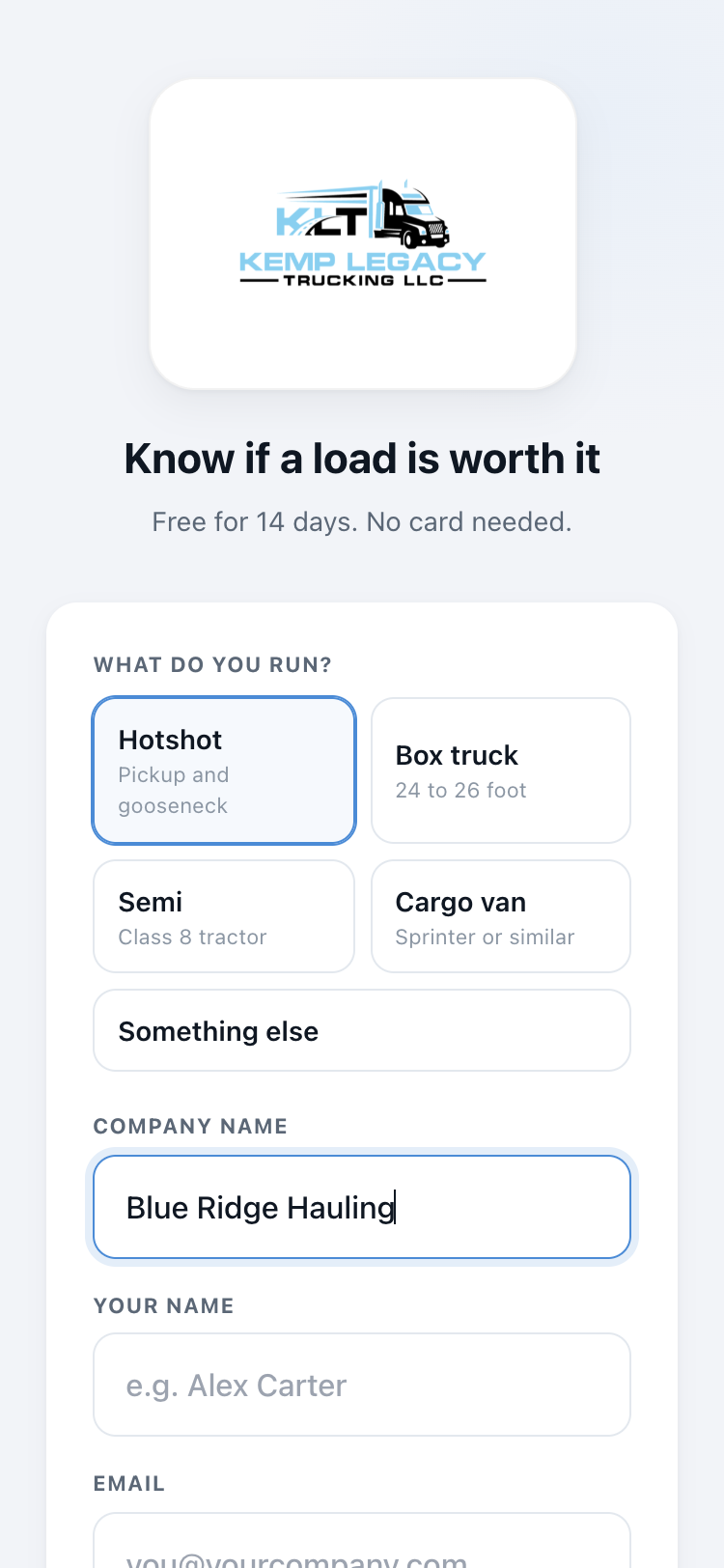
Company name, your name, email, and a password. That's the whole form.
That's it — you're in, signed in, no waiting on anyone.
Free for 14 days. No card.
Owners: answer four quick questions
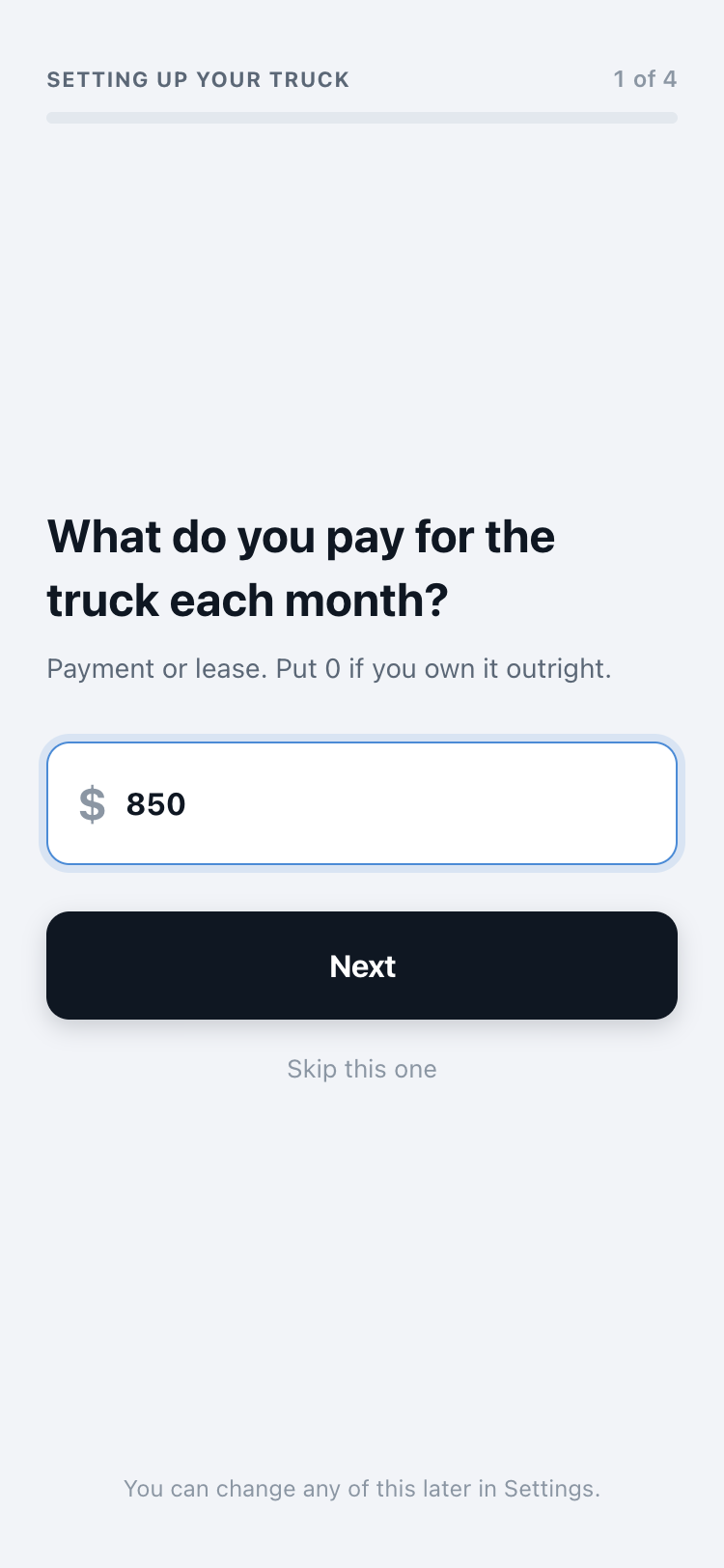
Truck payment, insurance, monthly miles, fuel mileage — one at a time. This is what every verdict is built on.
Rough answers are fine. Skip anything you'd have to look up; you can fix any number later in Settings.
Owners: text your dispatcher a join code
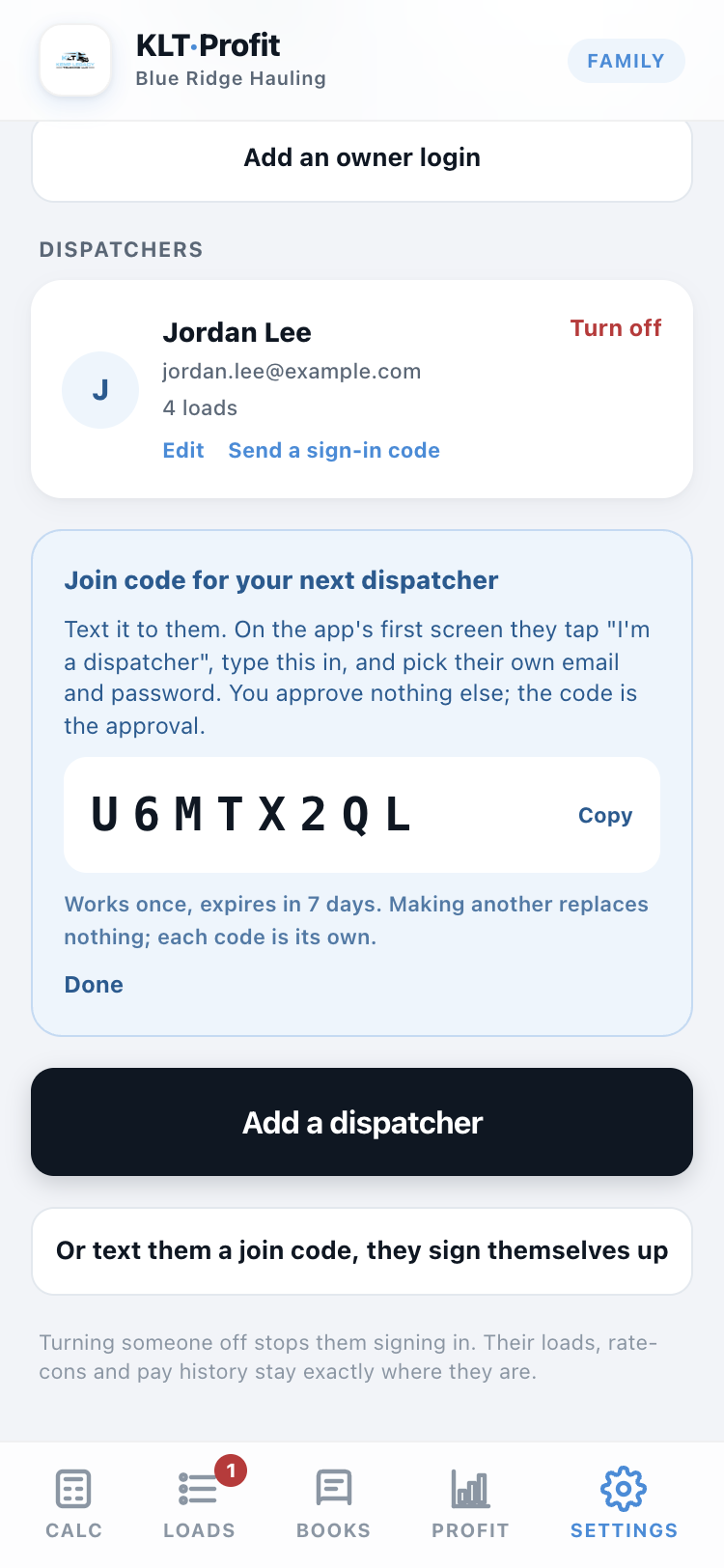
On the Team tab (under Settings), tap "Or text them a join code, they sign themselves up." The app makes an 8-character code — copy it and text it over.
That's the whole onboarding. The code is the approval: whoever types it joins your company, picks their own password, and never sees your costs or profit.
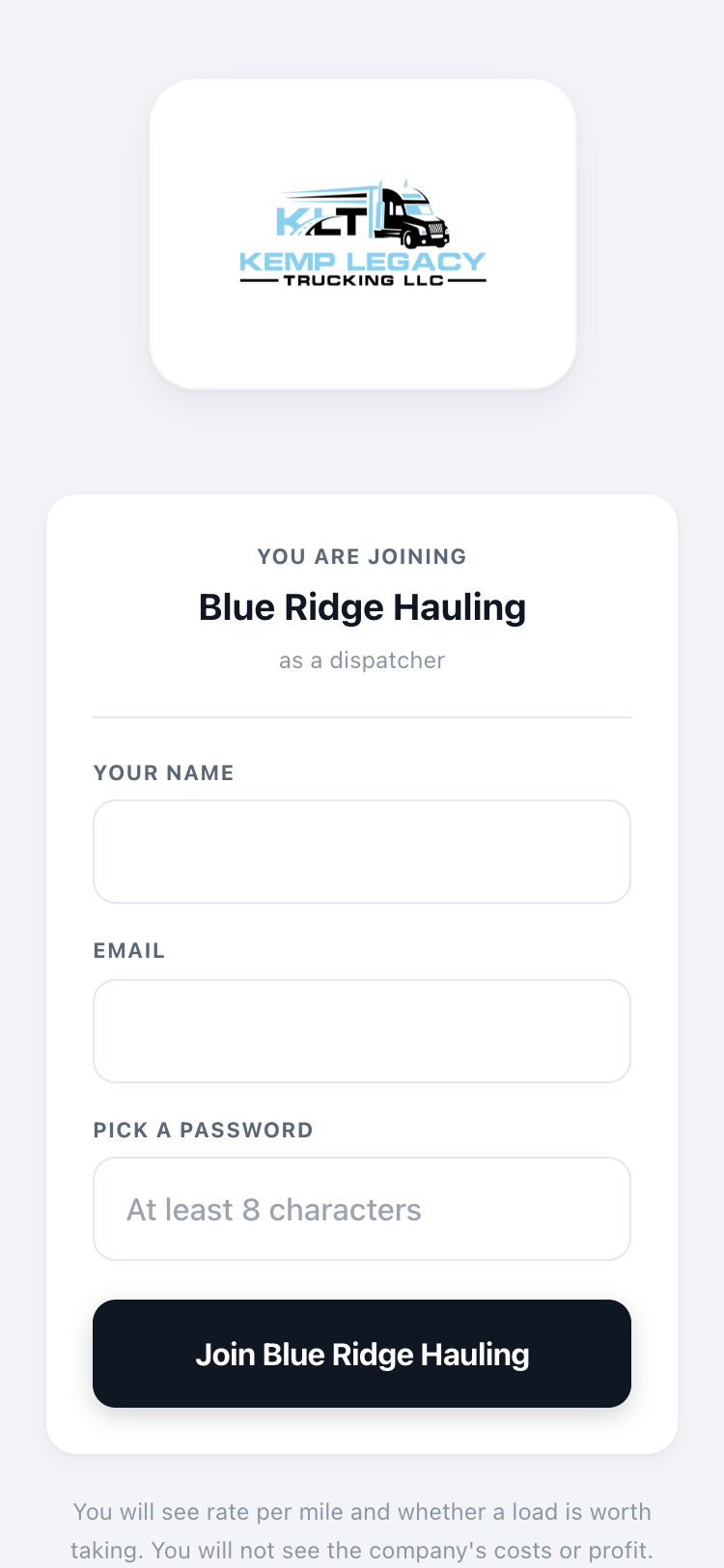
Dispatchers: type your code
Your owner sends you an 8-character code. Type it in and the app shows you which company you're joining, so you know you got it right before you make a password.
No code yet? Ask whoever runs your carrier — they make one on their Team screen in seconds.
Running your company
Every tab, in the order you'll use them: price loads, keep the truck's location fresh, invite your dispatcher, approve work, and watch the money.
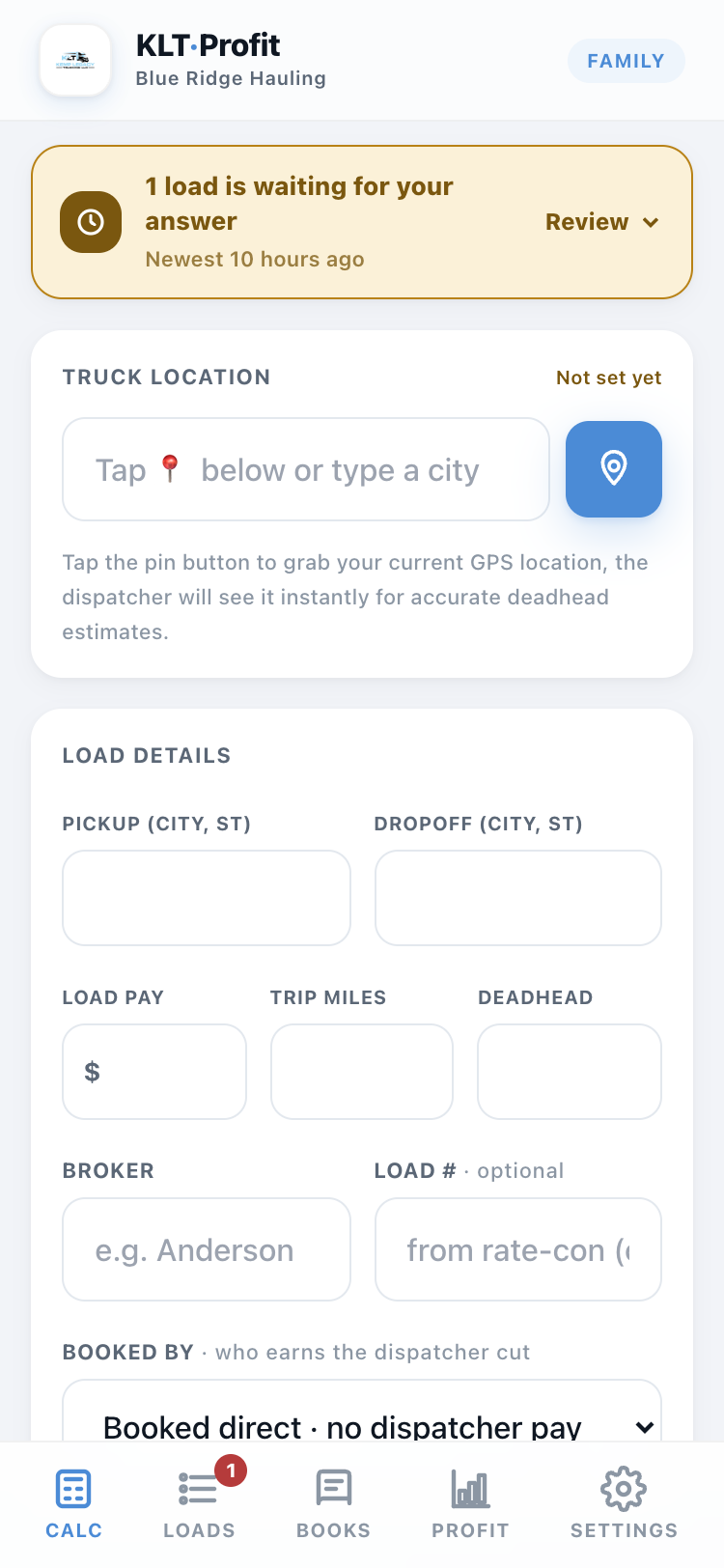
This is home
The calculator opens first. Type any load in — where it picks up, where it drops, what it pays — and the app tells you if it's worth taking based on your truck's real costs.
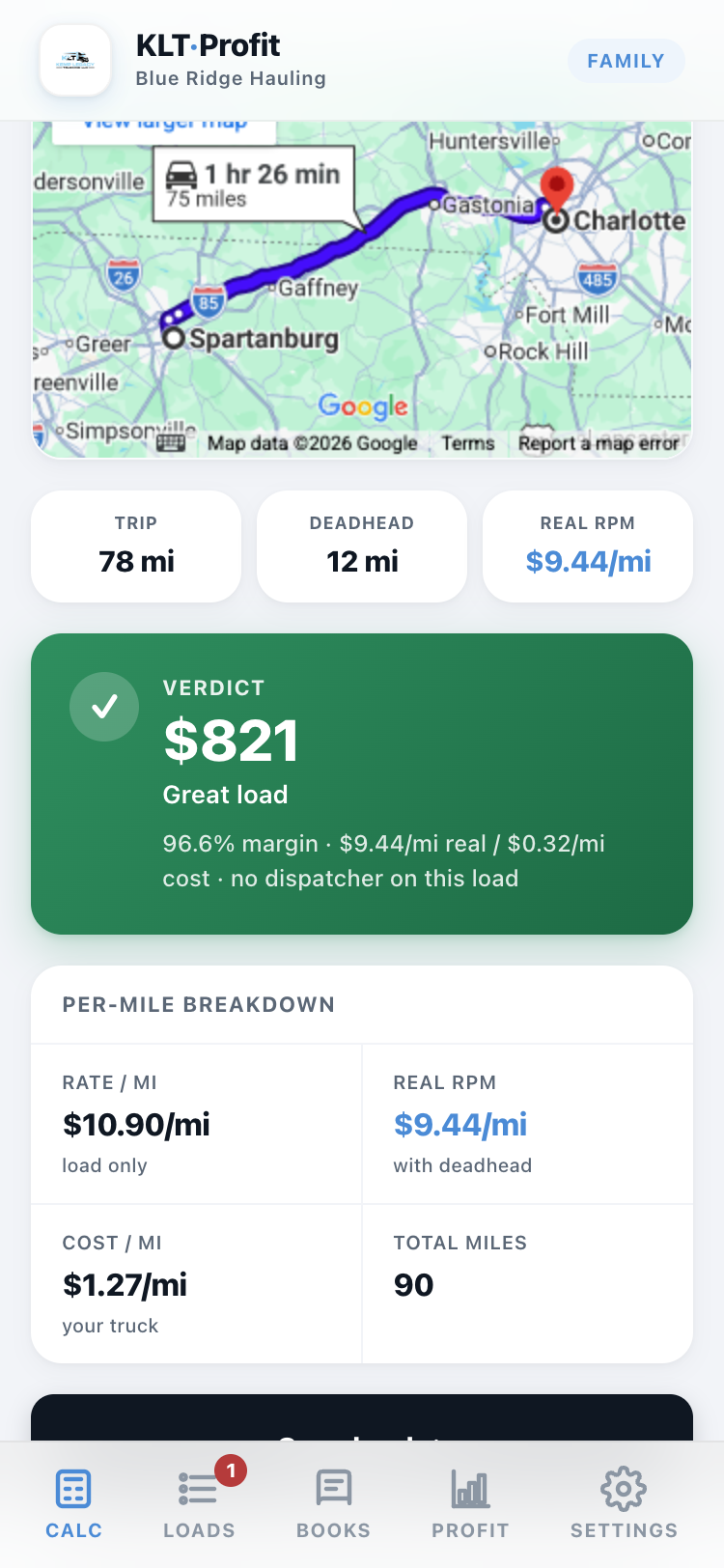
Green means money
Every load gets a verdict: green is profit, red is a loss, with the dollar amount right there. No math, no guessing at a fuel number.
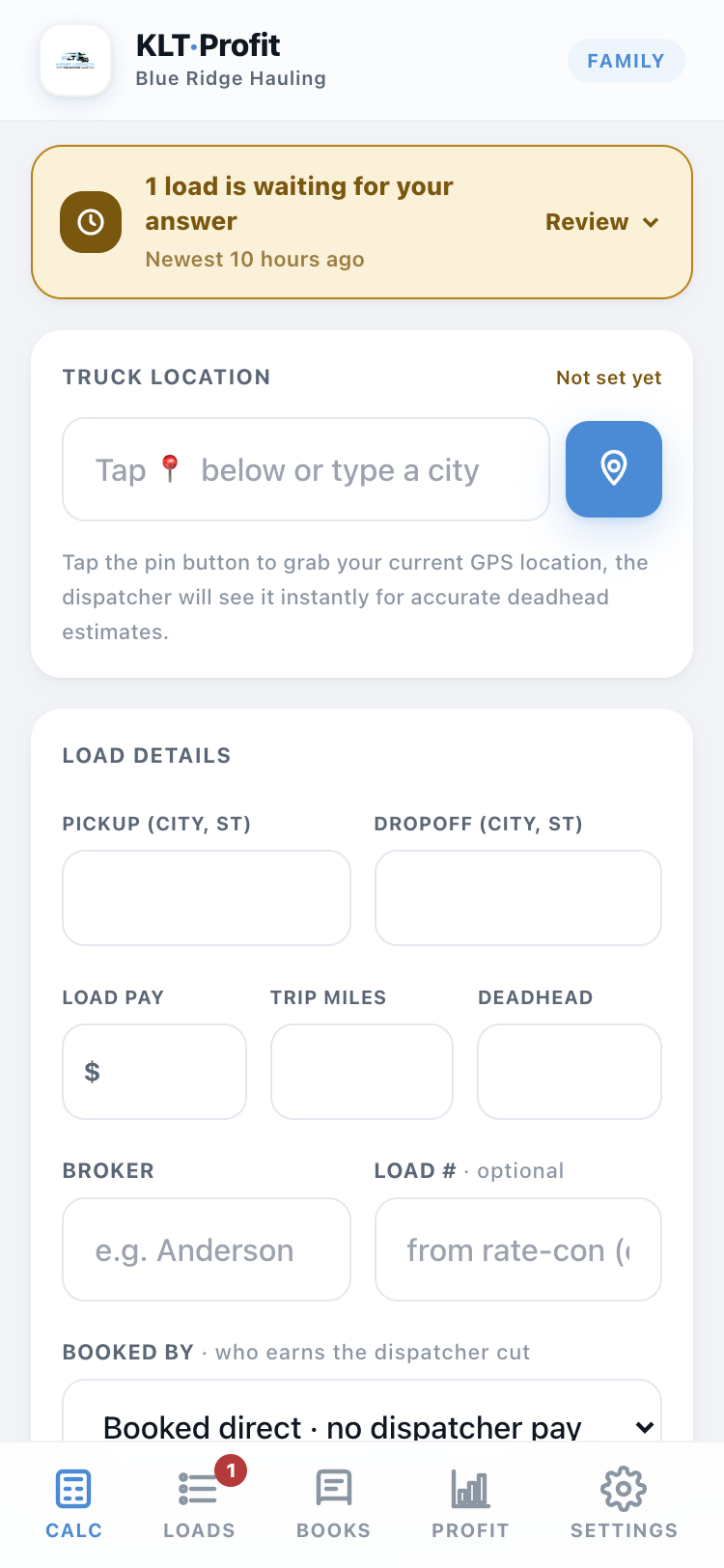
Tap the pin when the truck moves
The Truck location card sits at the top of the calculator. Tap the blue pin button (or type the city) whenever the truck parks somewhere new.
Your dispatcher sees it instantly, and every load they price starts its deadhead math from where the truck really is.
The Team tab manages who gets in
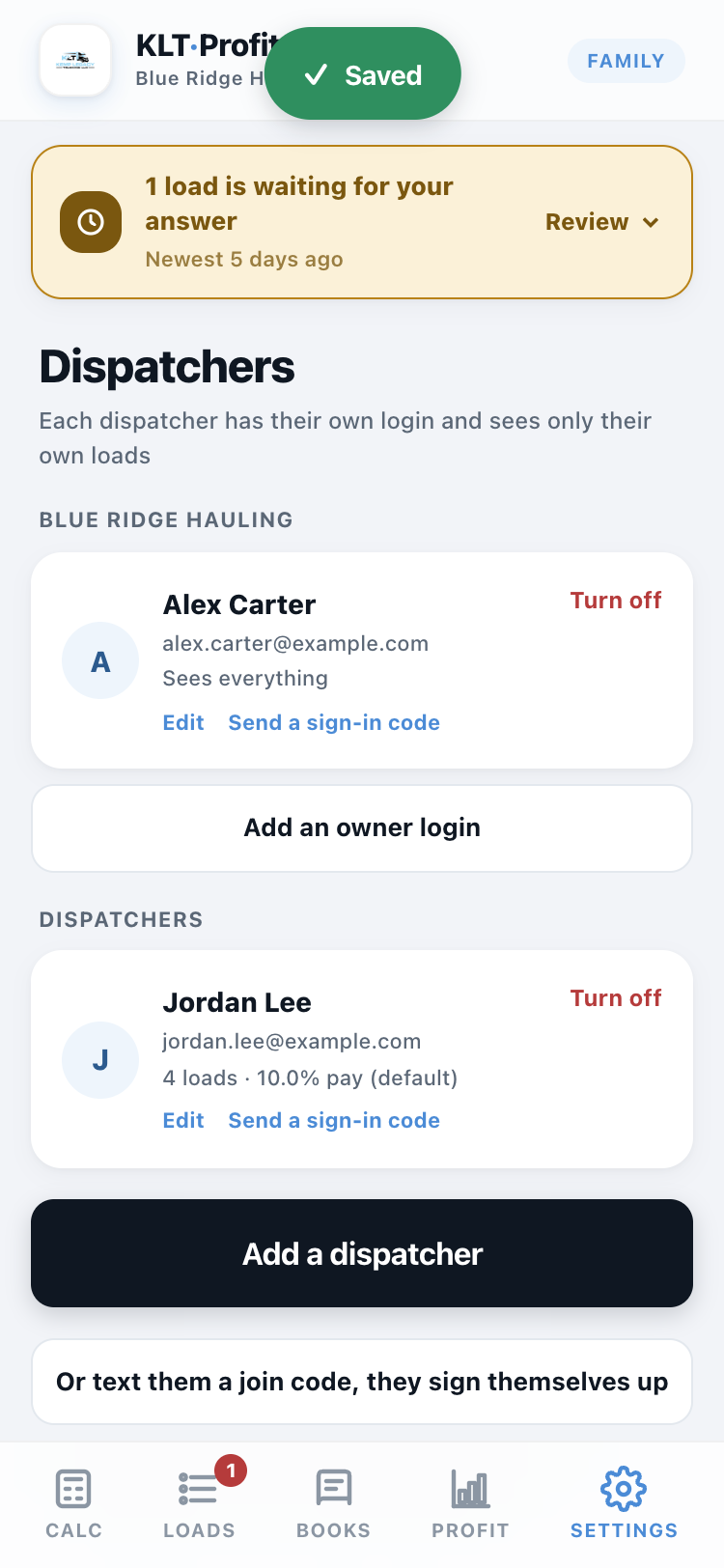
Everyone who can sign in lives here. Make a join code for a new dispatcher, add another owner login, and turn someone off the day they stop working with you — their loads and pay history stay put.
Someone forgot their password? Send a sign-in code from their card and they're back in, in under a minute.
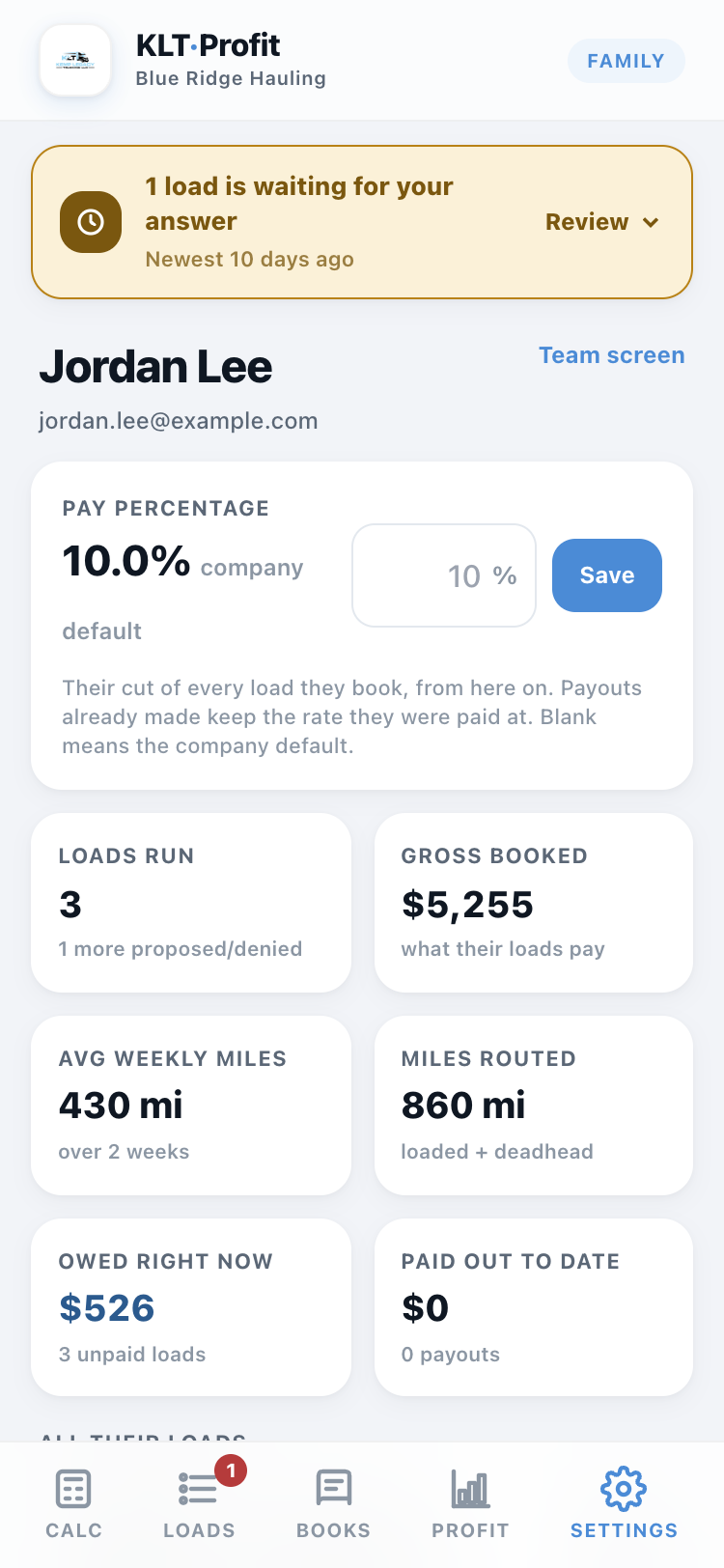
Each dispatcher can have their own pay percentage. Tap Edit on their card and set it — 4%, 6%, whatever you agreed. It follows them everywhere: the Books tab, their pay screen, and every payout records the rate it was paid at.
Say yes or no from anywhere
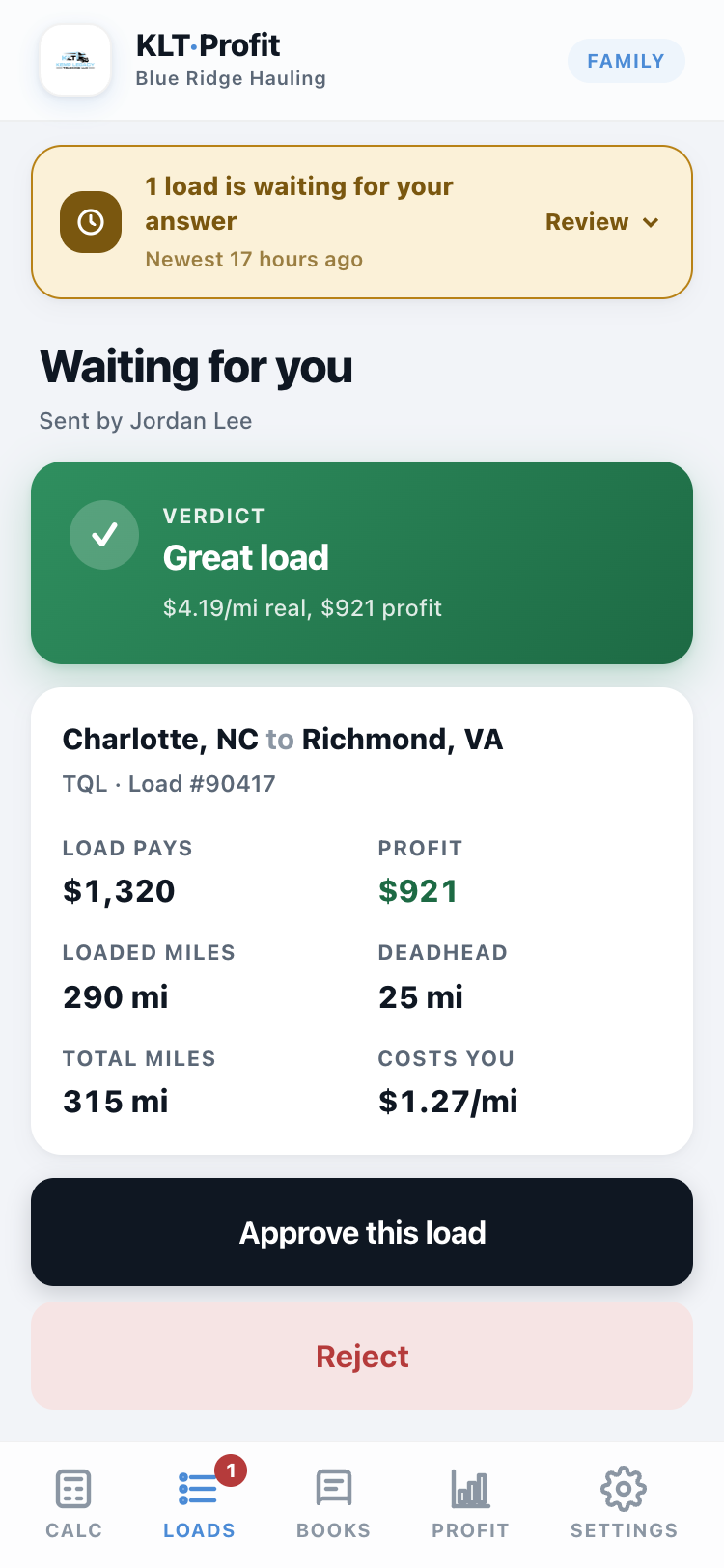
When your dispatcher finds a load, it shows up waiting for your answer — everything on one screen: what it pays, what it costs you, what's left over. Two buttons. You can be in the truck, at dinner, wherever.
Nothing gets booked unless you approve it.
The Loads tab is the running list
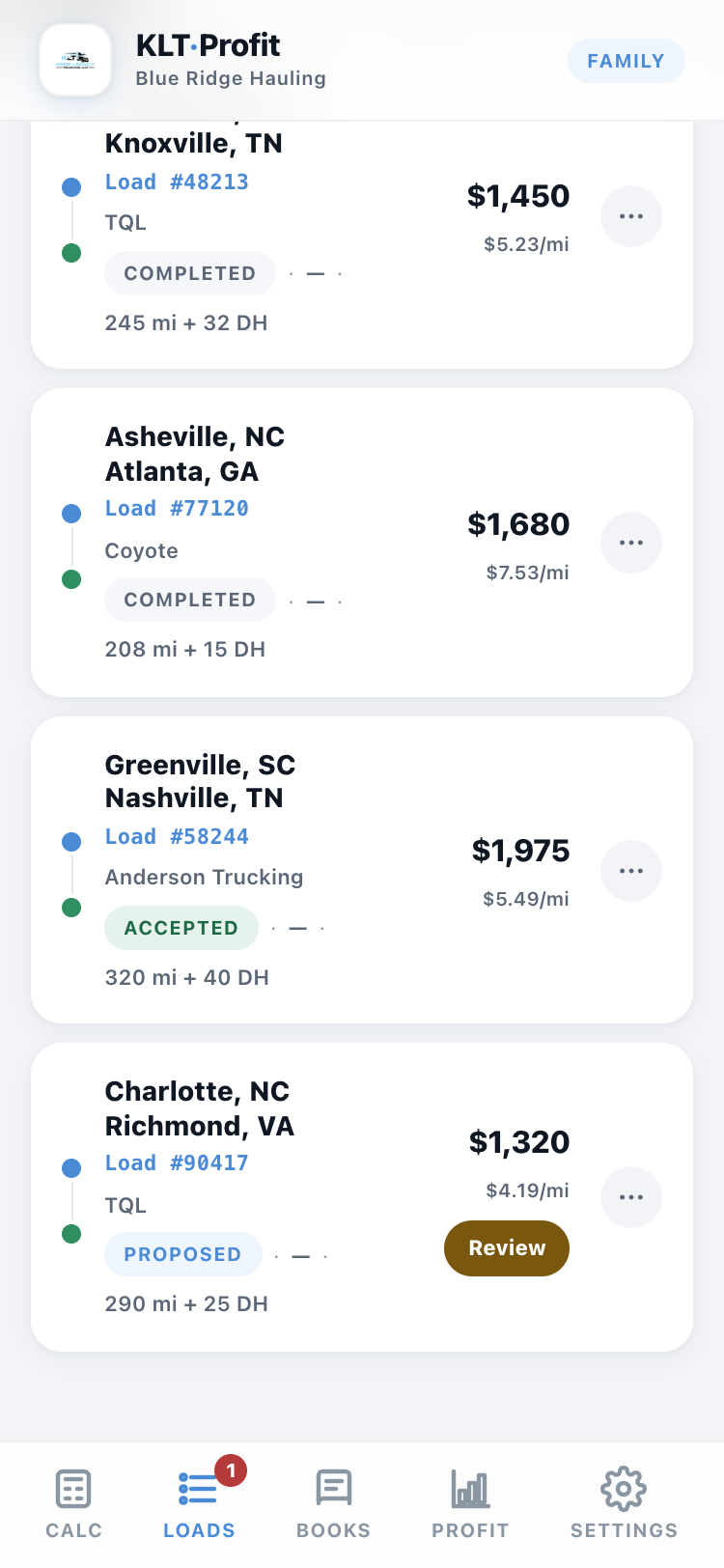
Every load in one place — what's waiting, what's approved, what's done, and what each one pays. The red badge on the tab is how many loads are waiting on your answer.
Tap any load to open it, fix a number, or attach paperwork.
When the pay changes after the fact
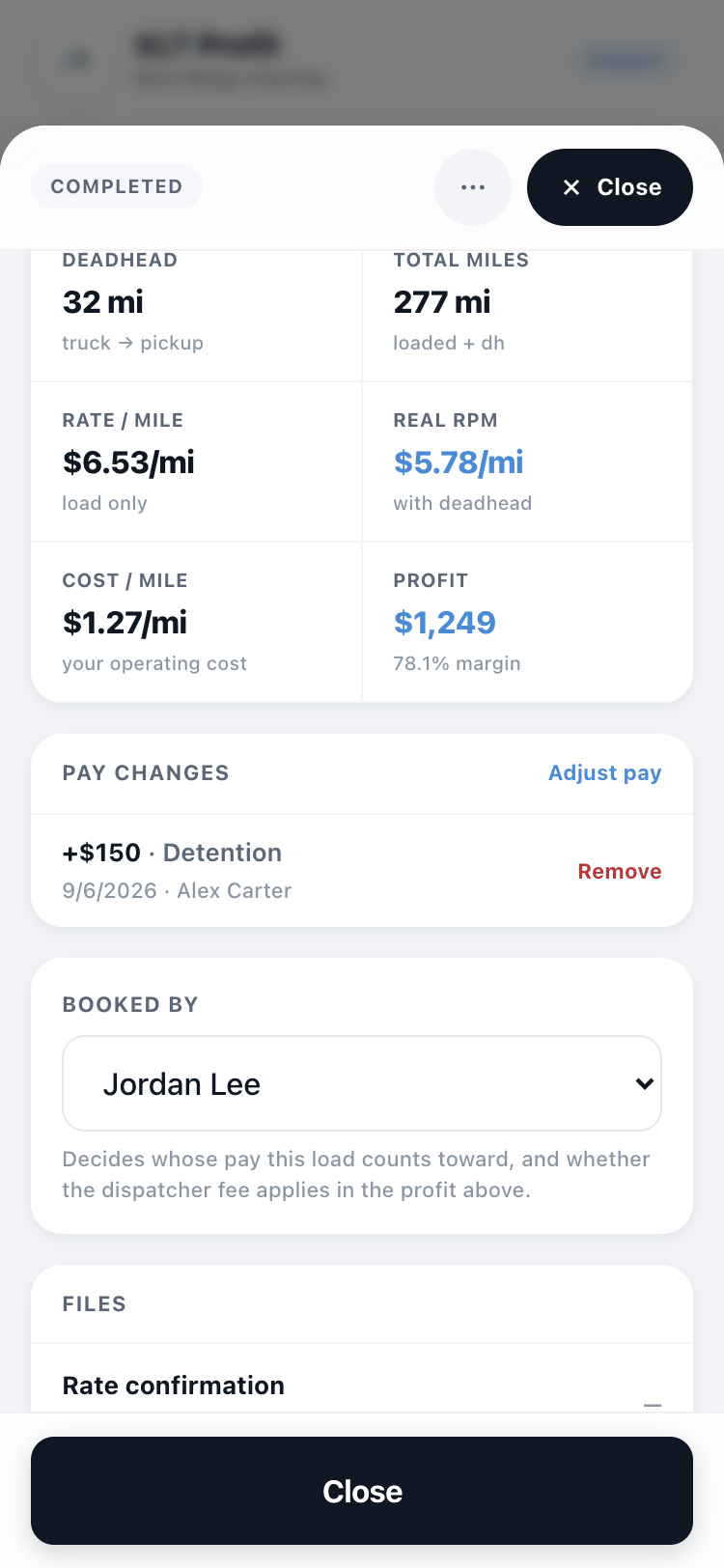
Detention, layover, a corrected rate — open the load, tap Adjust pay, put in the amount and what it's for, and attach the new rate con if one came with it.
The original pay stays visible ("$1,450 + $150 added"), the old rate con is kept, and everything follows automatically — your dispatcher's cut, the Books tab, the Profit tab. Every change is logged: who, what, when.
Pay your dispatcher on the Books tab
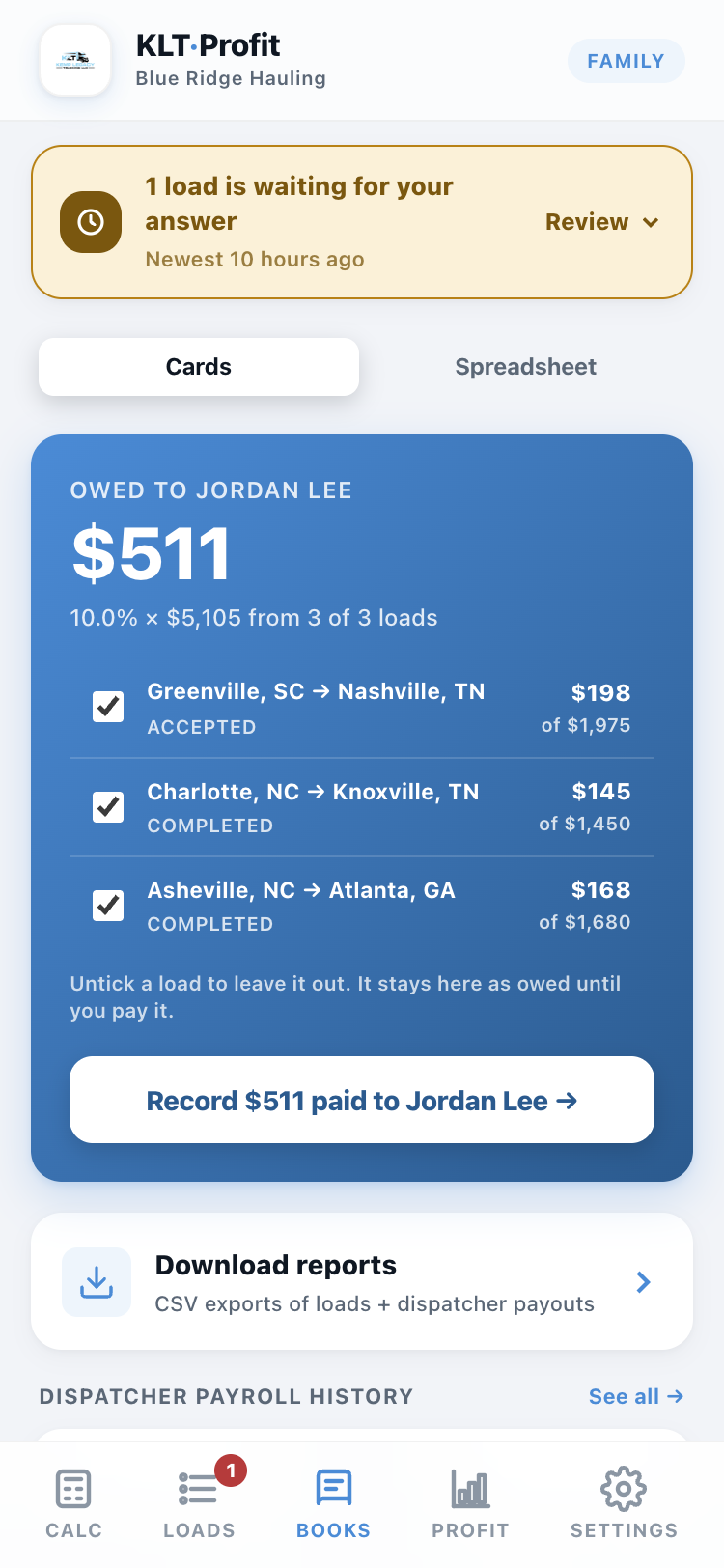
The Books tab keeps a running total of what you owe your dispatcher — their percentage of every approved load, added up for you.
When you pay them, tap the button and it's recorded. Untick any load to leave it for next time — you pay on your schedule.
Tap a dispatcher's name for their hub
On Books or Team, their name is a button. It opens their whole picture: pay percentage (change it right there), loads run, gross booked, average weekly miles, what they're owed and what they've been paid — plus every load with their name on it.
The Profit tab is the scoreboard
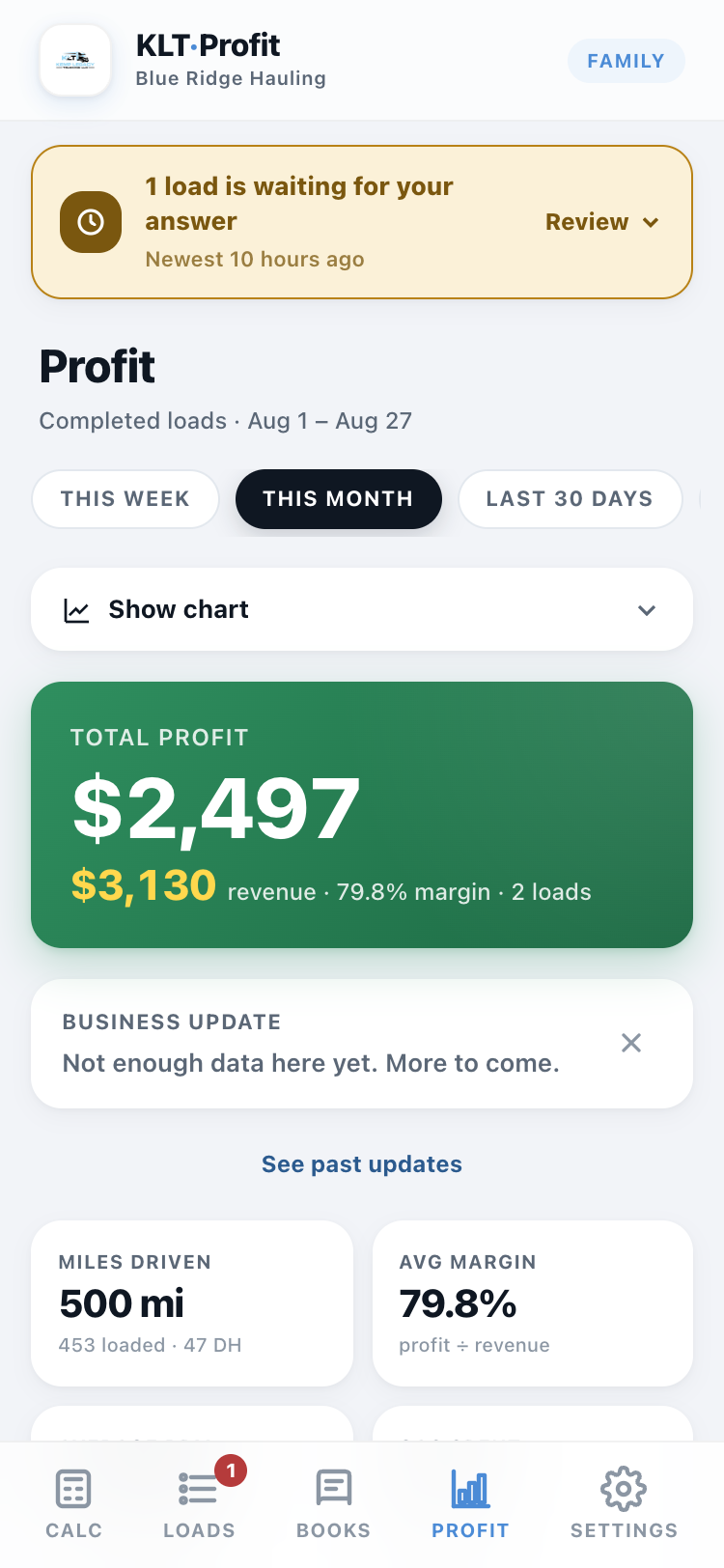
What came in, what it cost, what you kept — this week, this month, or any stretch you pick. Built from finished loads, so it's the real story, not a forecast.
Settings holds your truck's numbers
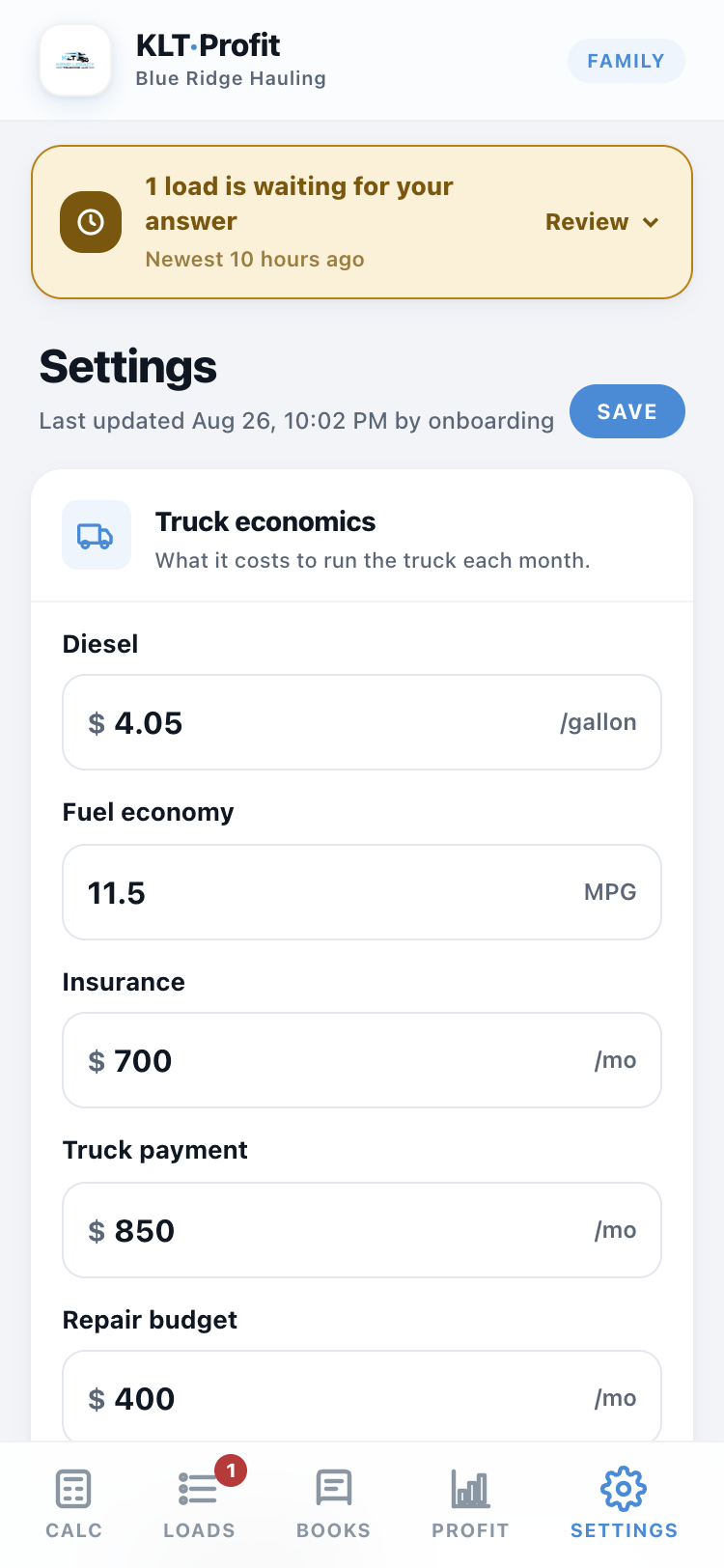
Diesel price, fuel mileage, insurance, truck payment, your dispatcher's percentage — every number the verdicts are built on lives here.
When something changes in real life, change it here and every screen updates. Wrong numbers in, wrong verdicts out.
Running the loads
Find a load, check it, send it, attach the paperwork. The owner answers with one tap, and your cut tracks itself.
This is home
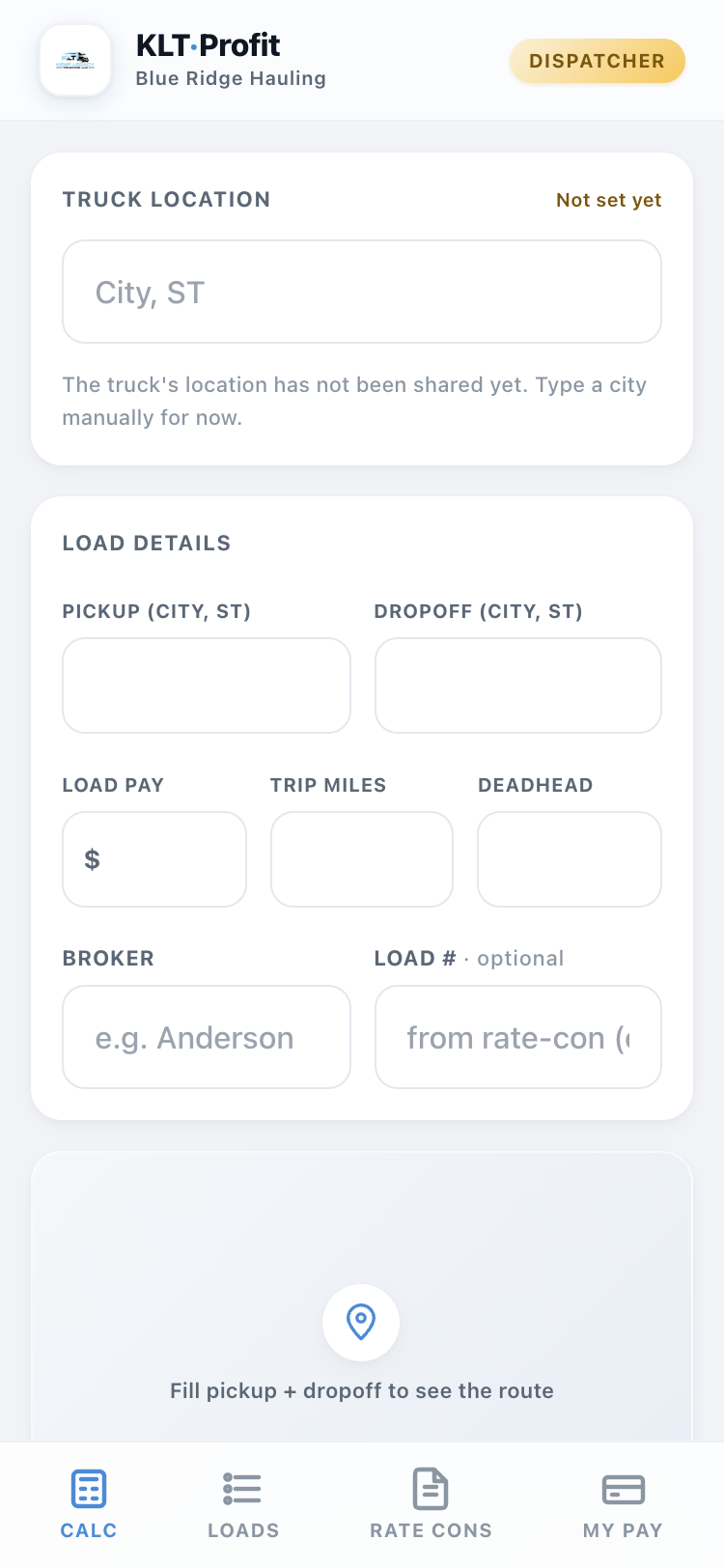
Same calculator, made for you. Type in a load you found — pickup, dropoff, what it pays — and the app checks it against the truck's numbers without ever showing you the company's costs.
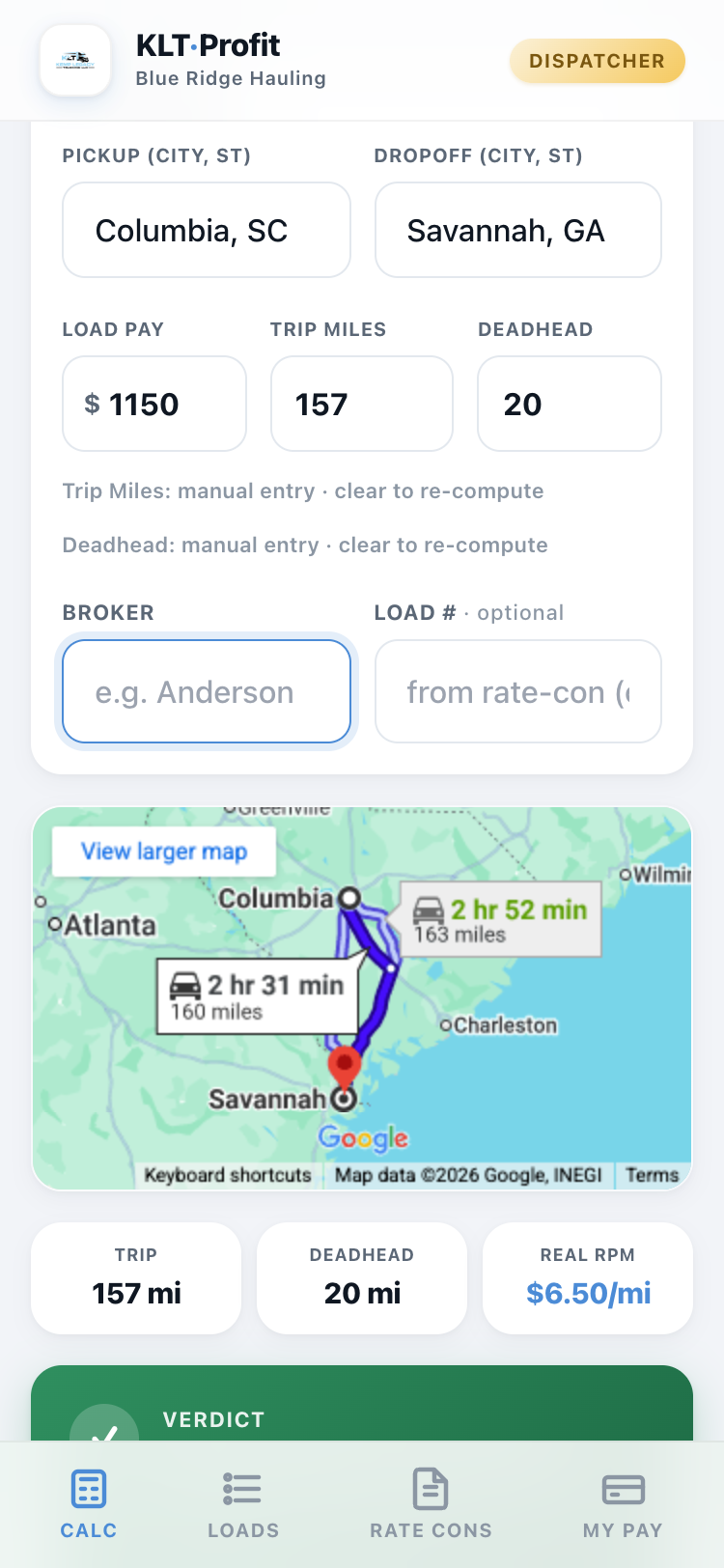
Check it, then send it
You get a simple answer — good load or bad load — plus the map and the real miles. If it looks good, send it for approval. The owner's phone gets it instantly.
Deadhead fills itself in. The app measures the empty miles from where the truck is right now to your pickup. That spot comes from the owner tapping the location pin on their side, so it's only as fresh as their last tap.
Deadhead missing or looking wrong? Ask the owner to update the truck's location. You can also type a different city into the truck location box to check just this one load from there.
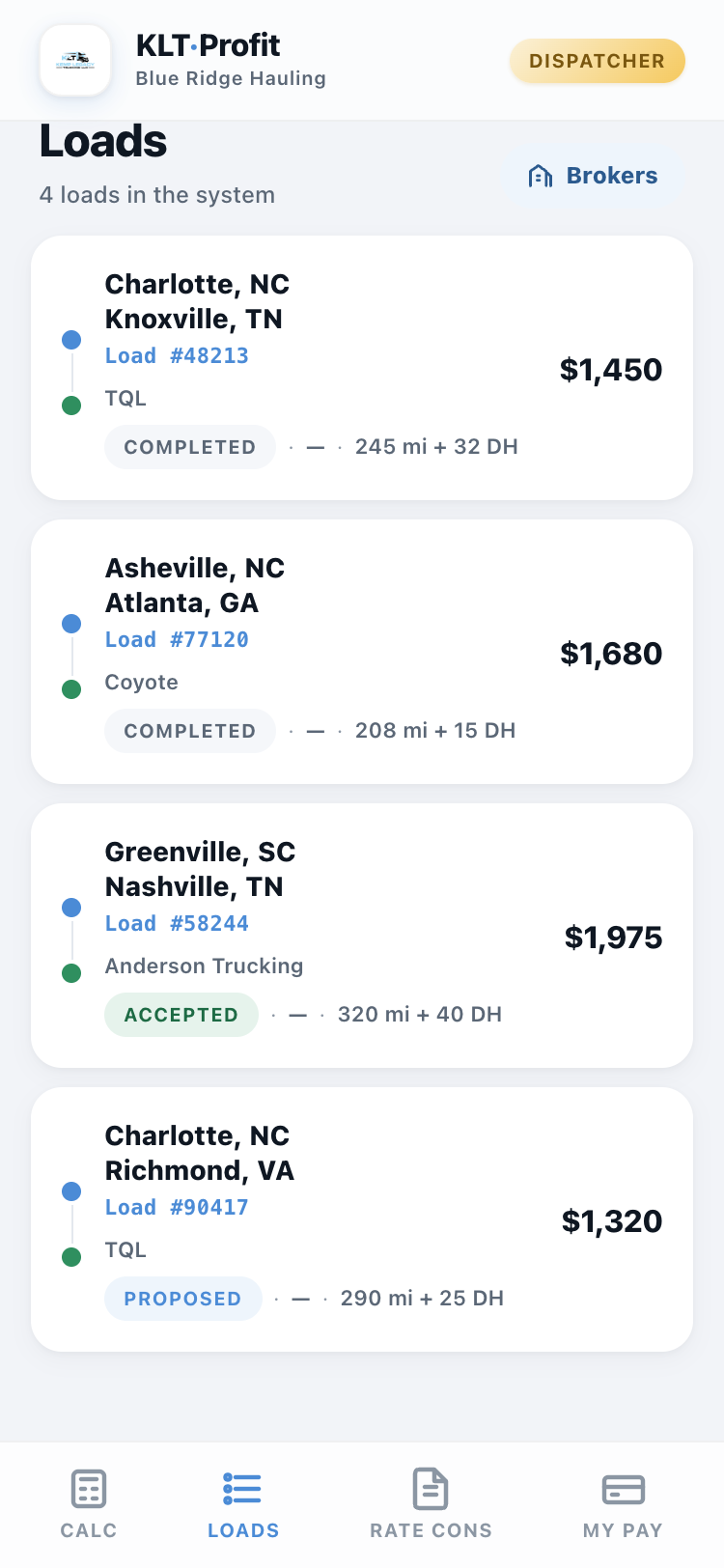
Watch your loads move
The Loads tab shows everything you've sent and what happened to it — waiting, approved, done. No texting "did you see that load?"
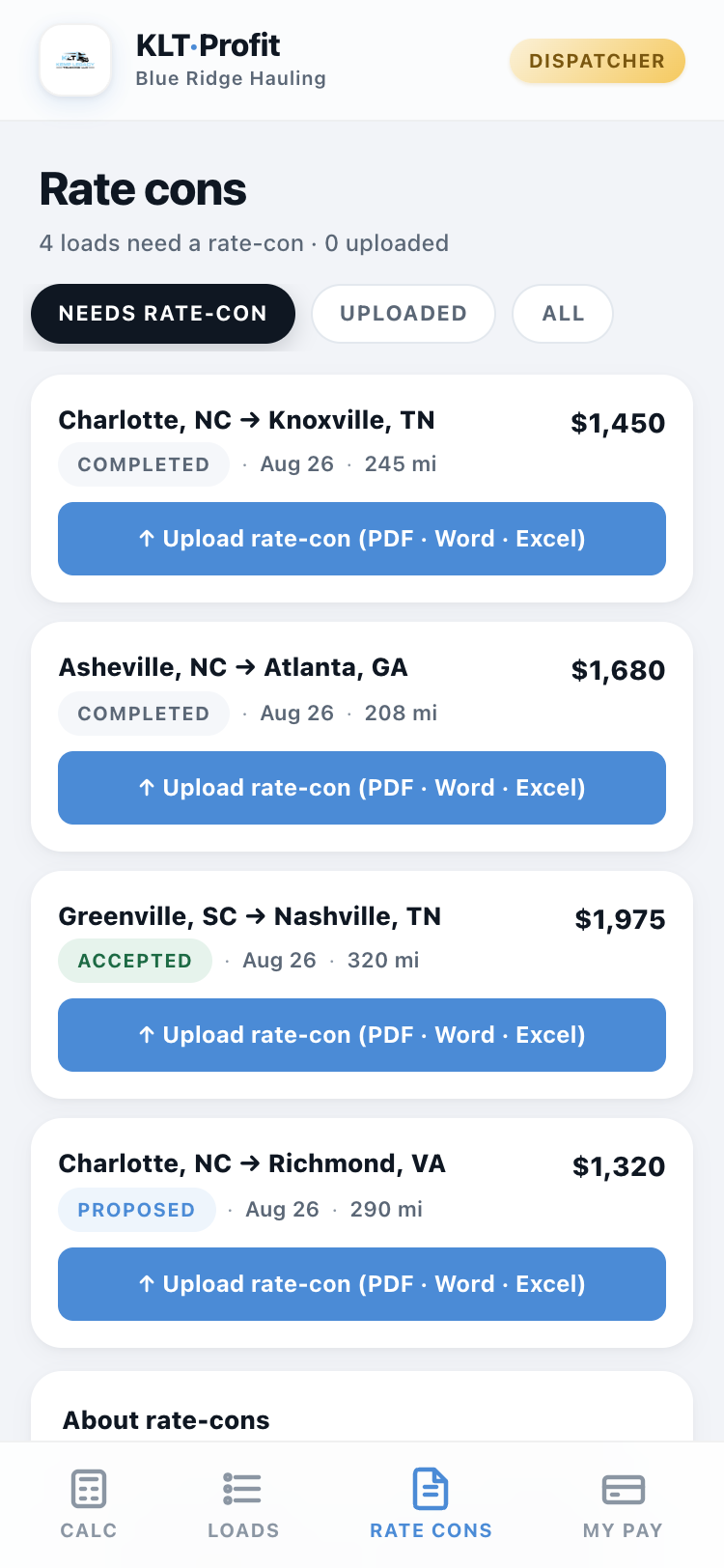
Rate cons live on their own tab
A rate con is the broker's paper for a load. The Rate cons tab shows which of your loads still need one — tap Upload, pick the PDF, and it's attached to that load for good.
Once it's uploaded, the office can open it from their side, so nobody ever texts you asking for the paperwork. Bonus: on the calculator you can upload a rate con first and the app reads it and fills the load details in for you.
Your pay adds itself up
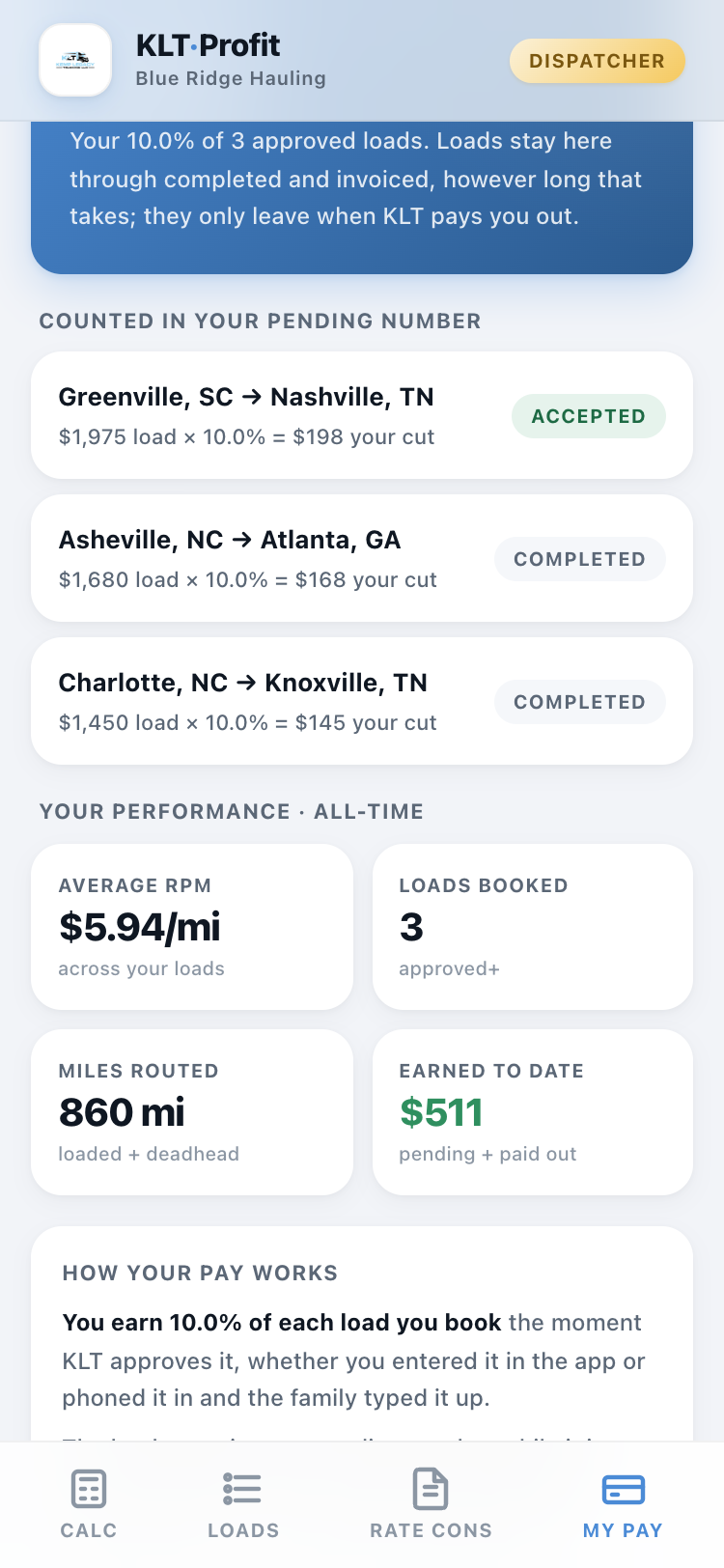
The My Pay tab shows your cut of every approved load, to the penny, load by load. It stays there until you're paid — nothing disappears, nothing needs a spreadsheet.
That's every screen
Dispatcher finds it and sends the paperwork, owner approves it and pays out, everybody sees their side of the money. If a screen isn't in this guide, the app doesn't have it.
Open KLT Profit